The installation of DFF on Microsoft Windows XP/Vista/7 32 and 64 bits
There are two packages for windows :
 Click on the Next button (or Cancel if you wish to cancel the installation).
 If you disagree, click on Cancel to quit the installation, otherwise click on I agree.

Click on the Browse... button if you wish to change the installation directory (optional). Once you are done, click on the Next button.

You can rename it or chose an existing directory in the list. You can also check the Do not create shortcuts check-box to avoid creating shortcuts on your desktop.


Click Yes on the pop-up, and then Next of the wizard.
Click next.

 If you wish to change this directory, click on the Browse... button and select the new location. Once you are done you can click on Install.

Click on Yes if you want to install them. Wait during the installation.

You can now start using DFF (Digital Forensic Framework)
There are two packages for windows :
- The first one contains all required dependencies (Python 2.7 and PyQt). It can be downloaded from here (about 52MiB big).
- The second one (9MiB big), which can be downloaded from here, does not contain Python and PyQt, so you will need to install the two following dependencies before launching DFF installation :
The form on DFF download page is OPTIONAL . If you do not wish to send any information, just leave it empty and directly click on the Download button.
- Once you have download one of the installer, you can run it by double-clicking on it. The following window will be opened :

- On the next screen, you will be asked to accept the license terms.

- Then select in which directory you want to install DFF (by default in C:\Program files\DFF)

Click on the Browse... button if you wish to change the installation directory (optional). Once you are done, click on the Next button.
- You will be asked for the name of the shortcut you want to create in your Start -> programs menu (by default, Digital Forensics Framework).

You can rename it or chose an existing directory in the list. You can also check the Do not create shortcuts check-box to avoid creating shortcuts on your desktop.
- Click on the Install button.
Install Python and PyQt
You will be asked if you want to install Python.
Python 2.7 AND PyQt 4.8 (or superior) are required to run DFF, so click Yes if do not have already installed those dependencies. Otherwise you can click No and directly go to the finish install part.

- PyQt wizard will be launched.
- One more time, you will be asked to accept the license terms of PyQT.

Click on I Agree if you agree with those terms. Otherwise, click Cancel to quit the installation.
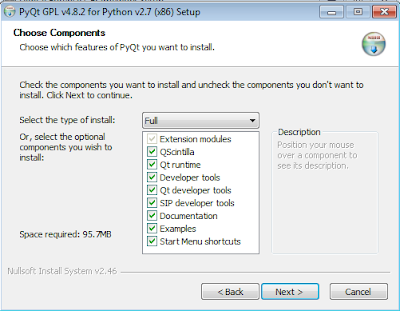
- Select which PyQt components you wish to install.

Then you can click next.Note : Even though every components are selected on the screen-shot, the only ones which are required are Extensions modules (checked by default) and Qt runtime. Among the others, select the ones you are interested in.
- You will have to select in which directory you want ton install Python (C:\Python27 by default).

- Once this installation is finished, you can click on Finish.

Then you can chose to install the Microsoft DLL dependencies (required to run DFF).

Click on Yes if you want to install them. Wait during the installation.
Finish install DFF
Once the installation is finished, you can click on the Finish button.
You can now start using DFF (Digital Forensic Framework)
